Debugging & Optimization
Troubleshooting Process for Positioning Issues
Generally, when identifying the problematic area, follow this troubleshooting process:Beacon Link Connectivity Status
If the link is not connected, it will have no effect on positioning; the two-way packet reception rate must remain consistently above 85%.
Causes of Low Packet Reception Rate: Excessive distance, severe obstruction, interference, hardware failure, or improper installation location
Optimization: Use diagnostics to check link information between beacons and identify abnormal beacons; adjust the installation location or height, reduce obstructions, or add relay beacons
Beacon Link Ranging Results
Note: Under normal two-way packet reception conditions, if significant ranging errors are detected, the following may be the cause:
-
Fixed obstruction between beacons: As long as the obstruction is a certain distance from the beacons, the impact on positioning is usually minimal
Symptoms: Ranging values are significantly higher or lower than the actual values, and the error remains relatively stable
Impact: If the obstruction is a certain distance from the beacons (for example, near the midpoint of the line connecting the two beacons), the UWB signal propagates in a spindle-shaped pattern, so the impact on positioning is minimal; however, if the obstruction is in close proximity to a beacon’s antenna, it will cause strong reflections and attenuation, resulting in a significant impact
-
Optimization: Inspect the environment to determine if there are any fixed obstacles that cannot be removed. If the obstruction is within an acceptable range, it can be left as is for now; otherwise, adjust the beacon positions or add beacons at the points of obstruction.
-
Beacon Coordinate Errors: These must be corrected. Coordinate errors affect the link error between the measured distance and the actual distance, directly introducing significant positioning errors.
-
No Obvious Obstructions but Large Distance Measurement Errors: Mounting on walls or metal surfaces may cause severe multipath effects, which significantly impact positioning accuracy.
Symptom: Although line of sight between beacons appears good, range measurements fluctuate significantly, have large errors, or show abnormally short or long distances.
Cause: The beacons are mounted directly on metal surfaces or walls, causing multipath interference.
Solution: Keep the beacons away from large metal surfaces and walls; use brackets to mount them at least 30 cm away from these surfaces.
-
Beacon Installed Incorrectly: Check whether the range measurements for nearby beacon links are also abnormal; they may have been mixed up. You can confirm this by using the “Find” button to locate the flashing beacon.
Beacon Coordinate Error
Coordinate errors must be kept within 5% of the beacon distance. For example, if the distance between beacons is 10 meters, the coordinate error should be less than 0.5 meters. In one-dimensional areas, errors should be kept within 2% as much as possible. At the edges of multi-area coverage, inaccurate beacon coordinates can cause jumps or drags when positioning results from two areas are stitched together, which may result in issues with area transitions.
Beacon-to-Tag Signal Reception
Within a given area, you should normally always receive signals from at least 3–4 nearby beacons. If no signals are received, positioning accuracy will definitely be compromised.
Impact: If a tag does not receive a strong enough beacon signal in a certain area, the positioning results may fluctuate, drift, or be lost.
Troubleshooting and Optimization:
- Are the beacon installation height and tilt angle appropriate to avoid signal coverage blind spots?
- Are there any large areas of metal obstructions or high-density shelving that are blocking the signal?
- Are the tags being obstructed by people or metal objects?
- Is the beacon density insufficient, requiring additional beacons?
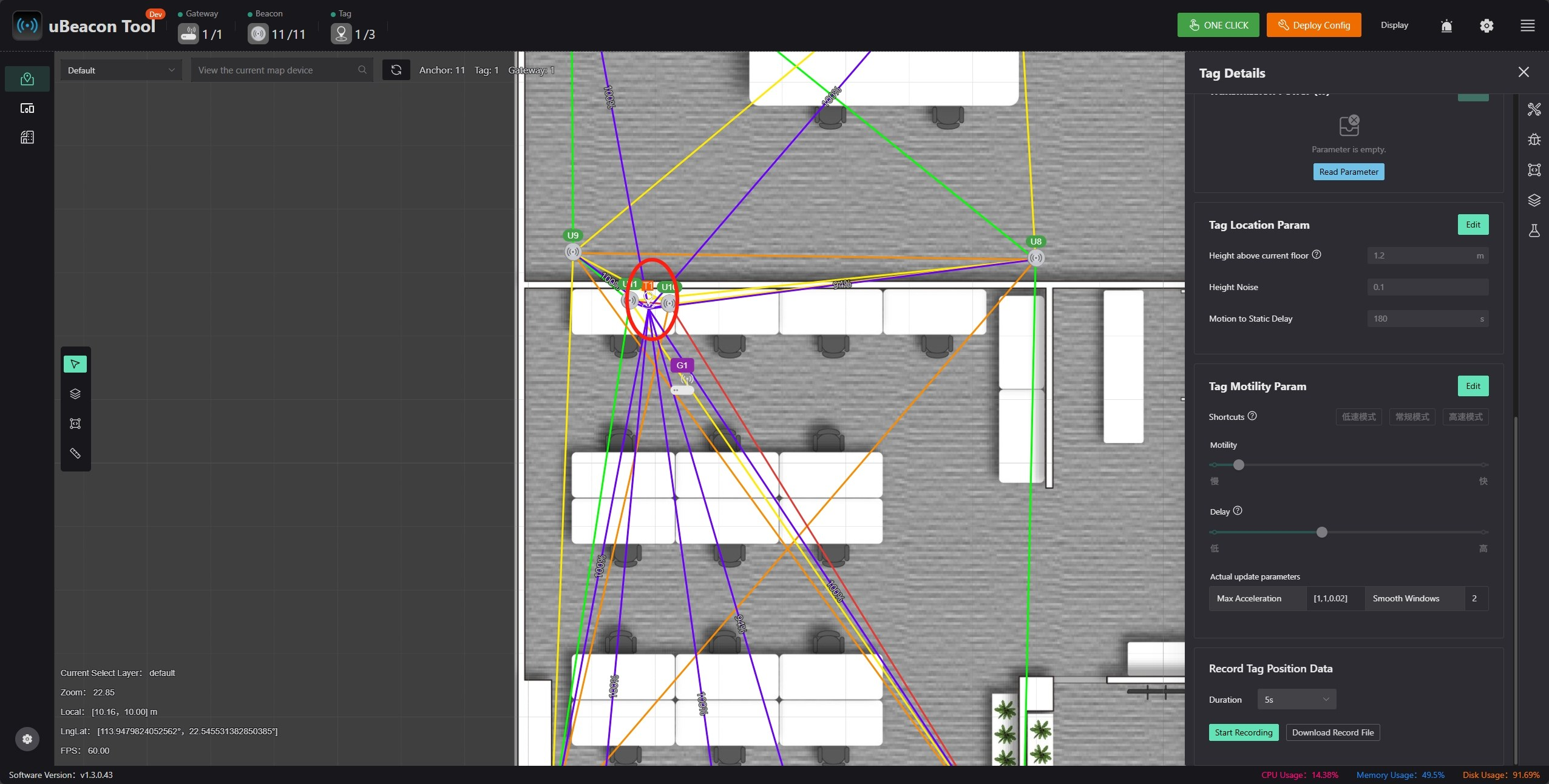
Issues with tag parameters:
- Height above ground: Should be roughly equal to the actual height of the tag in use; the greater the error, the greater the impact on positioning
- Height noise: Represents uncertainty in the height direction. Assuming the tag generally moves within a range of 1–2 m, it is recommended to set the height above ground to 1.5 m and the noise to 0.5 m
- Acceleration: Set based on the actual target’s mobility. Higher acceleration results in lower latency but also greater jitter.
- Smoothing window: Refers to smoothing using data from the most recent points. This introduces a fixed delay; the larger the window, the smoother the trajectory, but the greater the delay.
Issues with Constraint Region Settings
If the constraint region settings deviate significantly from reality, this will actually increase the error, as it is equivalent to introducing an incorrect assumption.
For example: If a one-dimensional constraint with a standard deviation of 1 is applied to what is actually a spacious hall, this will increase the error.
Troubleshooting Suggestions: If positioning issues occur, try temporarily disabling the constraint area feature to see if the positioning improves. If it does, this indicates that the constraint settings are incorrect, and you will need to redraw them to match your actual environment.
Relative positions of multiple maps (e.g., different floors)
Note that the relative coordinate relationships between maps must be correct. For example, the origin of the first-floor map must be strictly aligned vertically with the origin of the second-floor map. Otherwise, it is equivalent to having a beacon with incorrect coordinates, which significantly affects positioning.
Tag Hardware Issues
- Low battery level: Tags may not be located accurately when the battery is low; recharge the tag and test it again to compare results.
- Hardware malfunction: Swap the problematic tag with a known-good tag in the same environment to test and determine whether the issue is caused by a hardware malfunction.
- Firmware version: Check whether the tag’s firmware version matches that of the other tags.
The computer's performance is too low
If the battery is low or your computer's performance is insufficient, the software may run slowly and produce unexpected results.
Diagnosis
Check the link status between the beacon stations
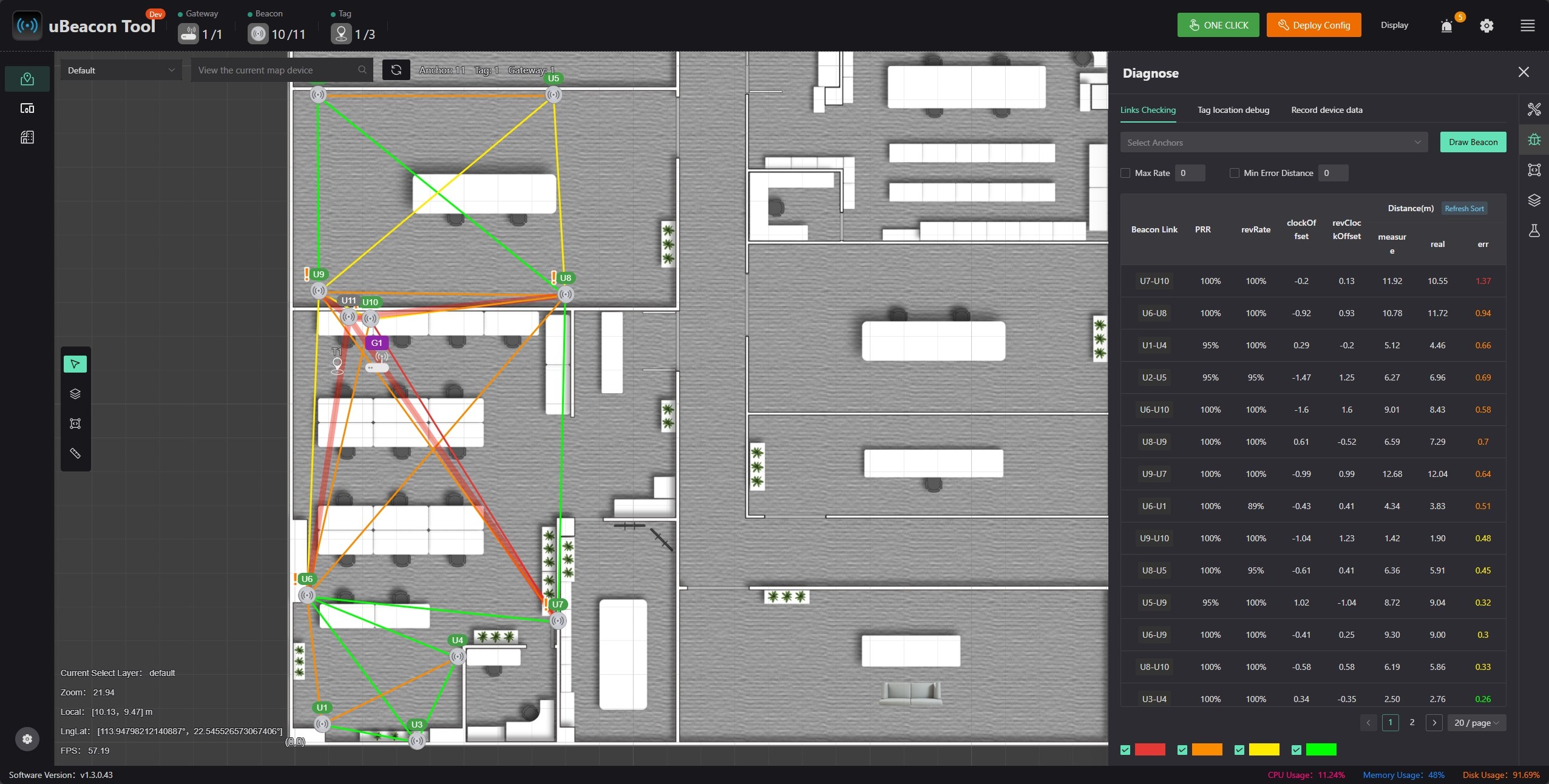
A beacon marked with an exclamation point indicates that it has an unconnected link.
Red, semi-transparent gradient lines represent unconnected links.
The color of the lines connecting beacons indicates ranging error; the redder the color, the greater the error.
On the right are detailed link information, including bidirectional packet reception rates and ranging-related data.
Check the signal reception from the beacon to the tag
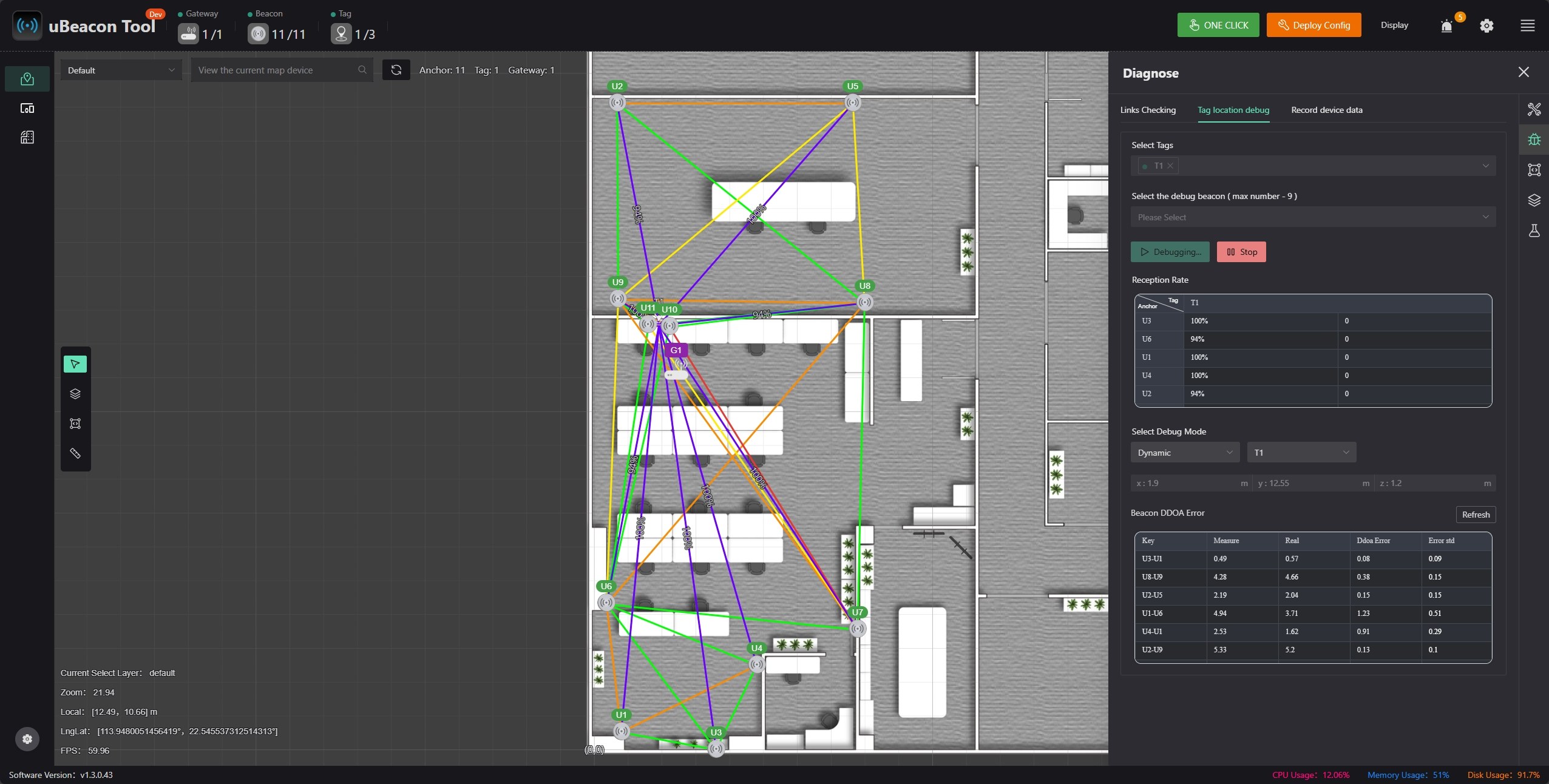
Switch to the “Beacon Location Debug” tab, select the beacon you want to monitor, and start debugging.
Generally, if there are no other errors and the packet reception rate is normal, the location is considered accurate. However, exceptions may occasionally occur. You can check the DDOA error to further determine which beacon might be causing the issue. The source of the problem could be
- Obstructions between the tag's current location and the beacon
- The beacon's location is prone to multipath
- Other sources of error related to the beacon
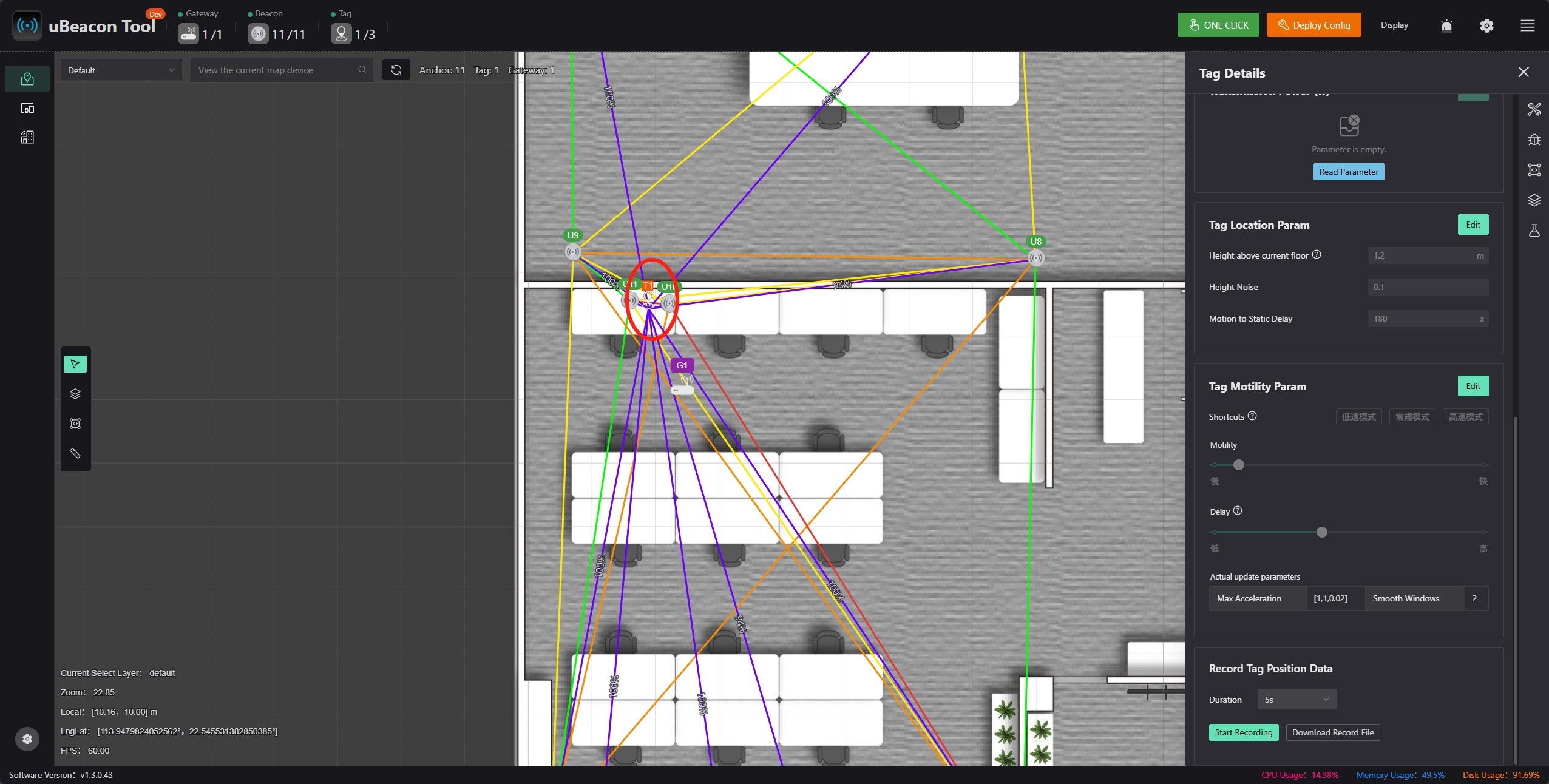
Check Label Parameters
Click the tag icon on the chart to configure tag settings in the information panel on the right.
Performance Optimization Methods
If, after performing the above troubleshooting steps, the results still do not meet requirements, you can typically use the following methods to further optimize the system:
- Optimize tag placement: For personnel tracking, safety helmets > wristbands > employee ID cards
- Optimize beacon placement:
- The higher the beacon, the less the signal to the tag is affected by obstructions
- The closer the aspect ratio is to 1, the better the performance
- Within the communication range, the greater the spacing between beacons, the smaller the relative error, and the better the positioning accuracy
- Add more beacons: In theory, the higher the beacon density, the higher the positioning accuracy